A WordPress website migration sounds intimidating mostly because of what can go wrong, a broken database connection, missing images, or a site that goes down for hours, but the actual process is fairly mechanical once you know the right order to do things in.
This guide walks through a complete WordPress website migration, from choosing a method to the exact steps and the checks you need to run afterward, with every specific tool claim sourced.
What Counts as a WordPress Website Migration
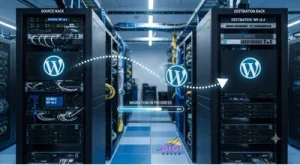
A WordPress website migration covers any move of your site’s files and database from one location to another, this includes moving to a new host, moving from a staging environment to your live domain, changing your domain name, or switching from a local development setup to a live server. The underlying process is largely the same in each case, move the WordPress files, move the database, and update any references that point to the old location.
If you are specifically choosing where to migrate to, our guide to WordPress hosting and our Hostinger review cover picking a host, this guide focuses on the migration itself once you have a destination in mind.
Before You Start: A Pre-Migration Checklist
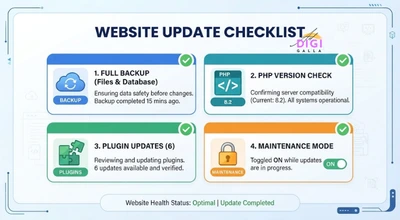
Before touching anything, take a full, independent backup of both your files and database, kept separate from whatever your migration tool creates on its own, so you have a genuine fallback if something goes wrong partway through.
It is also worth checking your current PHP version against your new host’s requirements. WordPress 7.0 (“Armstrong”), released on May 20, 2026, raised the minimum required PHP version to 7.4, with PHP 8.3 or higher recommended for best performance. Confirming your host meets this before migrating avoids a working old site turning into a broken new one purely over a version mismatch.
Finally, clean up before you move. Delete unused themes, inactive plugins, and spam comments, so you are migrating a lean site rather than years of accumulated clutter, this also makes the migration itself faster and less likely to hit file size limits on tools that have them.
Choosing a WordPress Website Migration Method
There are three realistic ways to handle a WordPress website migration, and which one fits depends mostly on your technical comfort and site size.
Host-assisted free migration. Several major hosts, including SiteGround, Cloudways, and WP Engine, offer free migration as part of onboarding a new customer, and Hostinger offers a similar migration service. If you are moving specifically because you are switching hosts, it is worth checking whether your new host will simply do this for you before reaching for a plugin at all.
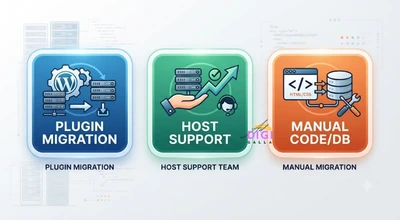
Plugin-based migration. This is the right fit for most site owners handling their own move. A few options stand out for different situations:
- Migrate Guru is free and handles sites up to 200GB with no size-based paywall, though it caps you at 5 migrations per month per account and doesn’t support migrating from a local development environment, according to a detailed comparison by SmartWP. It does not double as a backup tool.
- Duplicator offers a genuinely capable free tier alongside a paid Pro version, and includes a standalone installer that works even before WordPress is set up on the destination server, useful if you are moving to a completely fresh hosting account, based on details confirmed by Pantheon’s migration plugin guide.
- All-in-One WP Migration has over 5 million active installations and uses a simple drag-and-drop interface, though its free version has a file size limit that suits smaller sites well and can become restrictive on larger ones, according to Kinsta’s plugin comparison.
Manual migration. Exporting your database through phpMyAdmin and transferring files via FTP gives you full control and works when a plugin is not an option, but it demands more technical comfort and leaves more room for a small mistake, like a mismatched database prefix, to cause a broken site.
The Step-by-Step Migration Process
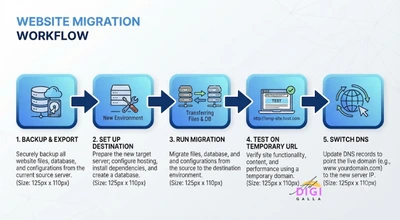
Step 1: Complete your pre-migration checklist above, backup, PHP compatibility, and cleanup.
Step 2: Set up your destination, whether that is a new hosting account, a new domain, or a live server ready to receive your local site.
Step 3: If using a plugin like Migrate Guru or Duplicator, install it on your current site, generate the migration package or connect it to your destination, and let it run. For larger sites, this step can take anywhere from a few minutes to a few hours depending on total size.
Step 4: Once the migration completes, open the new site using a temporary URL or by editing your local hosts file, rather than switching your domain’s DNS yet, so you can verify everything works before your visitors see the new location.
Step 5: Check that pages load correctly, images display, forms submit properly, and any custom functionality, like WooCommerce checkout if relevant, still works as expected on the new location.
DNS Propagation: What to Expect After You Switch
Once you are confident the new site works correctly, update your domain’s DNS records to point to the new location. DNS changes do not take effect instantly everywhere, propagation typically completes within a few hours but can occasionally take up to 24 to 48 hours depending on DNS caching across different networks.
During this window, some visitors may briefly see the old site and others the new one, depending on which DNS server their connection uses. Keeping your old hosting account active and unchanged until propagation fully completes gives you a safety net in case anything looks wrong on the new location during this transition period.
Post-Migration Checklist
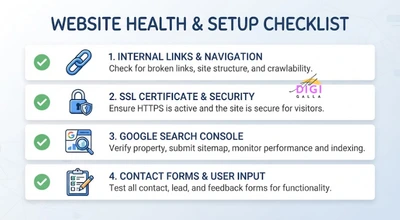
Once DNS has propagated, run through a final set of checks: confirm your SSL certificate is active and the site loads over HTTPS without warnings, test that internal links and images are not broken, submit your site in Google Search Console again if the domain changed, and test any contact forms or checkout flows end to end rather than assuming they carried over correctly.
If you changed domains as part of the migration, set up 301 redirects from the old domain to the new one, this preserves both existing visitor bookmarks and whatever SEO value the old domain had built up.
Common Migration Issues and How to Fix Them
White screen or database connection error. This usually points to incorrect database credentials in your wp-config.php file after the move, double-check the database name, username, password, and host match what your new environment actually uses.
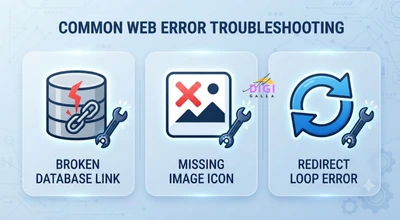
Missing images or broken styling. This is often a URL mismatch, if your old and new URLs differ, a proper migration tool should handle the search-and-replace automatically, but a manual migration needs this done explicitly in the database.
Site works but redirects to the old URL. This typically means the site URL and home URL settings in WordPress still reference the old address, these can be corrected directly in the database if the admin dashboard itself is not accessible.
A Hypothetical Example: Migrating a Small Business Site to a New Host
To make this concrete, here is a hypothetical example based on patterns commonly seen in this kind of migration, not a real client case.
Imagine a small business website currently on a slow, aging host, ready to move to a faster provider without any domain change. A team in this position would typically choose a free plugin like Migrate Guru given its zero-cost, external-server approach, since the site’s size does not need Duplicator Pro’s added capabilities and there is no local development environment involved.
A team following this kind of approach would typically test the new site thoroughly on a temporary URL before touching DNS, then keep the old host active for a few extra days after switching, purely as a safety net during propagation. This is illustrative only, and the right method depends on your own site’s size and your comfort with the tools involved.
Common Mistakes During WordPress Website Migration
Skipping the temporary URL testing step. Switching DNS before confirming the new site actually works properly turns a controlled migration into visitors discovering problems for you.
Forgetting to update hardcoded URLs. Some themes or plugins store absolute URLs in ways a standard migration tool’s search-and-replace does not always catch, it is worth manually checking a few key pages after migrating.
Cancelling the old hosting account too soon. Keeping the old host active until DNS has fully propagated and the new site has been live and stable for at least a few days protects you from having no fallback if an issue surfaces late.
Frequently Asked Questions
- What is the safest way to do a WordPress website migration?
For most site owners, a well-reviewed free plugin like Migrate Guru or Duplicator, combined with a genuine independent backup taken beforehand, is the safest approach. It removes most of the manual steps where a small mistake, like a mismatched database prefix, tends to happen.
- Will migrating my WordPress site hurt my SEO?
A properly executed migration should not hurt your SEO, as long as URLs stay consistent or are covered by proper 301 redirects, and you resubmit your site in Google Search Console if the domain changed.
- How long does a WordPress website migration take?
A small site under 500MB typically migrates in 5 to 15 minutes using a plugin, based on figures reported in SmartWP’s plugin testing, while larger sites in the 1 to 5GB range can take 30 minutes to a few hours depending on size and server speed.
- Do I need a plugin to migrate WordPress, or can I do it manually?
A plugin is not strictly required, but it removes most of the technical risk involved in a manual database export and file transfer. Manual migration is a reasonable option only if you are comfortable working directly with phpMyAdmin and FTP.
- Should I use my new host’s free migration service instead of a plugin?
If your new host offers a free migration service, and several major hosts do, it is often the simplest option, since it typically involves less manual work on your end. A plugin remains the better choice when you are migrating between environments a host’s migration service does not cover, like local development to live.
Final Thoughts
A WordPress website migration is a mechanical process more than a risky one, as long as you back up properly beforehand, test on a temporary URL before switching DNS, and keep your old hosting active until you are confident the new site is stable.
If you want help planning or executing a website migration without the downtime risk, DigiAdGalla works with businesses across Delhi NCR on the full technical setup alongside SEO and content. You can see our website development services or get in touch to talk through your specific migration.