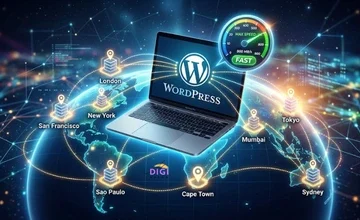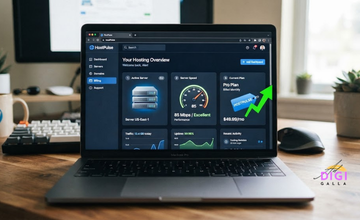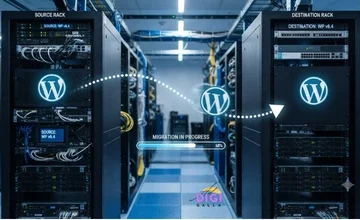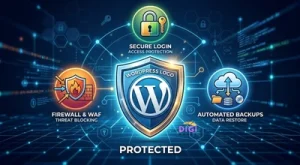
Learning how to secure a WordPress website is not a single afternoon project you finish and forget, it is a short list of habits that, done consistently, move your site out of the category hackers’ automated bots actually bother attacking.
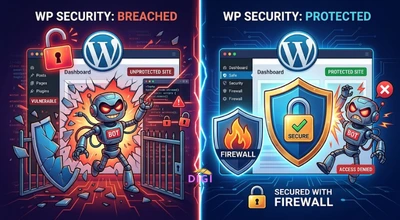
This guide walks through exactly how to secure a WordPress website in 2026, covering hosting, updates, login security, backups, and the specific plugins worth using, with every claim sourced.
Why WordPress Security Genuinely Matters
WordPress powers over 40% of all websites globally, according to W3Techs’ latest 2026 usage survey (a figure that has drifted down slightly from the roughly 43% seen earlier in the year), a scale that makes it a consistently attractive target for automated attacks simply because of how many sites run on it. According to a widely cited estimate tracing back to Sucuri’s hacked website research and repeated consistently across security trackers since, roughly 13,000 WordPress websites are compromised every single day, a figure that reflects the sheer scale of automated scanning and attack activity directed at the platform, not a sign that WordPress itself is inherently less secure than any other CMS.
The practical implication is straightforward: most successful attacks on WordPress sites are not the result of a sophisticated, targeted hacker singling out your specific business, they are automated bots working through a checklist of common, well-known weaknesses across thousands of sites simultaneously. Closing those specific weaknesses removes your site from that automated sweep far more often than it stops a genuinely determined, targeted attacker, which is good news, because it means the practical steps in this guide meaningfully change your actual risk.
The Attacks Your Site Is Actually Facing
Five attack types account for the large majority of real-world WordPress compromises, according to WP Creative’s 2026 WordPress security guide, based on patterns observed across their own client base.
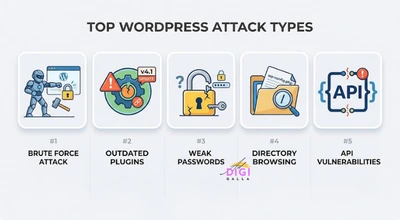
Brute force attacks and credential stuffing remain the most common entry point, automated bots hitting the wp-login.php page directly, testing thousands of password and username combinations per minute until one works.
Outdated plugins, themes, and core files create known, documented vulnerabilities that automated scanners actively search for, since a vulnerability disclosed for a popular plugin becomes public knowledge that attackers can exploit on any site that has not yet updated.
Weak passwords and missing two-factor authentication turn what should be a difficult barrier into a trivial one, a large share of successful breaches trace back to exactly this single, avoidable weakness.
Directory browsing left enabled lets anyone who guesses a folder URL like yoursite.com/wp-content/ see a full list of your site’s files and folders, handing an attacker a map of exactly which themes and plugins you run, and therefore which known vulnerabilities to try first.
REST API and authorization header leaks have become a more prominent 2026-specific concern, according to Smart Webtech’s security checklist, which notes that WordPress’s own Site Health tool now specifically checks whether authorization headers are being leaked, a newer class of vulnerability tied to how modern WordPress sites increasingly rely on API-driven functionality.
Step 1: Choose Hosting That Takes Security Seriously
Your hosting provider is genuinely your first line of defense, not an afterthought you address after everything else. According to Osom Studio’s 2026 WordPress security guide, cheap, unmanaged shared hosting often means shared risk, if another site on the same server gets compromised, yours can be affected too, and the guide specifically warns that a bargain hosting plan can end up costing considerably more once you factor in the cost of recovering from a genuine hack.
Look specifically for a host that includes free SSL, a server-level firewall, DDoS protection, and automated backups as standard, rather than features you need to configure entirely yourself. If you are still choosing a host, our Hostinger review and our broader guide to WordPress hosting both cover what to look for specifically.
Step 2: Keep Core, Themes, and Plugins Updated
This is consistently named the single most important, highest-leverage security habit across every source checked for this guide. Updates frequently include patches for specific, disclosed vulnerabilities, which means an outdated plugin is not just old, it is often a documented, publicly known entry point sitting open on your site.
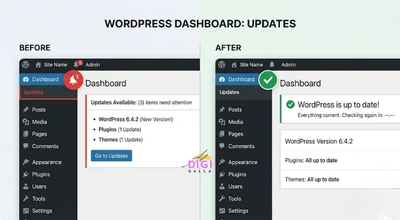
Enabling automatic updates for plugins and themes, available directly from Plugins, Installed Plugins in your WordPress dashboard, removes the risk of a critical patch sitting unapplied simply because nobody remembered to log in and check. For a major core WordPress update specifically, it is still worth a quick manual check afterward to confirm your site’s key functionality still works as expected, rather than relying purely on automation for every layer.
Step 3: Use Strong Passwords and Two-Factor Authentication
Weak, reused, or guessable passwords remain one of the most common reasons a WordPress site gets compromised in the first place. According to Jetpack’s 2026 WordPress security guide, changing the default “admin” username to something harder to guess, alongside using WordPress’s own built-in strong password generator rather than a memorable but weak alternative, meaningfully raises the bar for an automated brute-force attempt.
Two-factor authentication adds a second, genuinely effective layer on top of a strong password. According to Osom Studio’s guide, based on their own WordPress maintenance work, sites have been compromised within hours of a password leak, and two-factor authentication would have stopped every one of those specific incidents. This is consistently described as table-stakes security in 2026, not an optional extra.
Step 4: Manage User Roles Carefully
A related but often overlooked login-security issue is how many people actually have administrator access to your site, and whether each of them genuinely needs it. WordPress offers several distinct user roles, Administrator, Editor, Author, Contributor, and Subscriber, each with a progressively narrower set of permissions, and defaulting every team member to Administrator simply because it is the least likely role to cause a permissions error is a common, avoidable mistake.
A writer who only ever publishes blog content does not need the ability to install plugins or modify site settings, and a marketing team member managing social scheduling tools rarely needs full administrative access either. Limiting each user to the narrowest role that still lets them do their actual job means that if any single account is compromised, whether through a leaked password or a phishing attempt, the potential damage is contained to whatever that specific role can actually touch, rather than giving an attacker full control of the site through what should have been a low-privilege account.
It is also worth periodically reviewing your full list of user accounts specifically for ones that no longer need access at all, a former employee or an old contractor’s account left active is a genuine, needless risk that costs nothing to remove but sits open indefinitely if nobody ever checks.
Step 5: Install a Real Security Plugin
A dedicated security plugin automates much of what would otherwise require manual monitoring. Wordfence, Sucuri, and Patchstack are the three most consistently recommended options across current guides, each offering malware scanning, firewall protection, and real-time threat monitoring in slightly different combinations.
If you already use Sucuri for your CDN and firewall needs, which we covered in more depth separately, its security plugin naturally extends that same protection directly into your WordPress dashboard. A security plugin should be treated as one layer among several covered in this guide, not a single fix that makes the other steps unnecessary.
Step 6: Enable HTTPS Across the Entire Site
If your site is not fully on HTTPS in 2026, you are meaningfully behind, according to MiniOrange’s security guide, which notes that browsers now actively mark non-HTTPS sites as “Not Secure,” directly damaging visitor trust the moment someone lands on your page. Most quality hosting providers include a free SSL certificate as a standard part of their plans, typically through Let’s Encrypt.
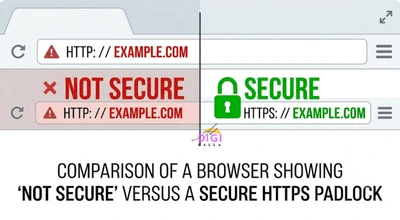
It is worth specifically checking that every URL across your site, including internal links and any hardcoded references left over from an older setup, actually points to the https:// version rather than defaulting back to http:// in places, since a partially configured SSL setup can still trigger browser warnings even after you believe HTTPS is fully enabled.
Step 7: Limit Login Attempts and Rethink wp-admin
Since brute force attacks work by testing enormous volumes of login combinations quickly, limiting how many attempts a single source can make in a given window directly blunts this specific attack type. Most security plugins include this feature by default, automatically blocking or temporarily locking out an IP address after a set number of failed attempts.
Some site owners also choose to change their login page’s URL away from the default wp-login.php or wp-admin, which does not make the site fundamentally unhackable but does remove it from the most basic, automated scans that only check the default location, a small, low-effort step worth pairing with the more substantial protections above rather than relying on alone.
Step 8: Keep Genuine, Off-Site Backups
A backup stored only on the same server as your live site defeats much of its own purpose, if the server itself is compromised, that backup can go down with everything else. A genuinely useful backup strategy stores copies off-site, away from your primary hosting environment entirely, using a dedicated backup plugin or your host’s own off-site backup feature.
Beyond simply having backups, it is worth actually testing a restore periodically, a backup nobody has ever successfully restored from is an assumption, not a real safety net, and discovering a backup was incomplete or corrupted is far better done as a routine test than during an actual emergency.
Step 9: Lock Down File Permissions and Directory Browsing
Directory browsing, when left enabled, lets anyone who navigates directly to a folder URL see a full list of the files inside it, handing a potential attacker a readable map of your exact theme, plugin, and file setup. Some hosts disable this by default, but not universally, so it is worth confirming directly rather than assuming.
File and folder permissions matter for a related reason, overly permissive settings on WordPress’s core files and folders give an attacker who does gain limited access a much easier path to modifying files, planting malicious code, or escalating that initial foothold into full control of the site. Most managed WordPress hosts and security plugins handle sensible default permissions automatically, but it is worth a periodic check rather than assuming this was configured correctly once and will remain that way indefinitely, particularly after a migration or a change of hosting provider. If you are planning a migration soon, our WordPress migration guide covers what to verify on the new environment before going live.
Step 10: Keep Your Plugin List Lean
Every additional plugin is additional surface area for a potential vulnerability, according to WP Rocket’s 2026 security guide, which specifically advises keeping your plugin list lean, since too many plugins can create compatibility issues, open genuine security holes, and slow down site performance simultaneously.
This does not mean avoiding plugins altogether, it means periodically auditing what is actually installed and active, removing anything no longer genuinely in use, and choosing fewer, well-maintained plugins from reputable developers with a track record of prompt security updates over a larger collection of less-vetted alternatives that each individually add small amounts of risk.
Signs Your Site May Already Be Compromised
A hacked WordPress site does not always announce itself with an obvious warning message. Watch for unexplained changes to content or settings you did not make, new administrator accounts you did not create, unfamiliar files appearing in your file directory, a sudden, unexplained drop in search rankings or traffic, or your hosting provider flagging unusual outbound activity from your account. If your security plugin’s malware scanner flags something, treat it as worth investigating immediately rather than dismissing it as a false positive without checking.
A Hypothetical Example: Securing a Neglected Site
To make this concrete, here is a hypothetical example based on patterns commonly seen in this kind of cleanup work, not a real client case.
Imagine a small business website that has been running for a few years with the default admin username still in place, no two-factor authentication, and a habit of clicking “remind me later” on plugin updates for months at a time. A business in this position would typically start with the two highest-leverage fixes first, updating every plugin, theme, and core file to its current version, and enabling two-factor authentication alongside a genuinely strong, unique password, before moving on to lower-priority items like reviewing file permissions.
A team following this kind of approach would typically install a reputable security plugin next, run an initial full malware scan to confirm the site is currently clean before treating any of these fixes as the starting point going forward, and set up genuine off-site backups if none currently exist. This is illustrative only, and the right priority order depends on your own site’s specific current gaps.
Common WordPress Security Mistakes
Assuming a security plugin alone is enough. As covered throughout this guide, a security plugin is one important layer among several, hosting quality, update discipline, and login security all matter independently and are not fully replaced by installing a single plugin.
Storing backups only on the same server as the live site. A backup that goes down alongside a compromised server provides no real protection, genuine off-site storage is the point of having a backup at all.
Treating updates as optional or something to defer indefinitely. A large share of real-world WordPress compromises trace back to a known, already-patched vulnerability that simply had not been applied yet on the affected site.
Never testing whether a backup actually restores correctly. An untested backup is an assumption rather than a verified safety net, worth confirming periodically rather than only discovering a problem during an actual emergency.
Frequently Asked Questions
- How do I secure a WordPress website as a complete beginner?
Start with the highest-leverage steps first: enable automatic updates, set a genuinely strong password with two-factor authentication, choose hosting that includes a firewall and SSL by default, and install one reputable security plugin like Wordfence or Sucuri. These four steps address the large majority of common attack vectors on their own.
- Is WordPress actually less secure than other website platforms?
Not inherently. WordPress’s scale, powering over 40% of all websites, makes it a frequent target for automated attacks, but the vast majority of successful compromises exploit specific, avoidable weaknesses like outdated plugins or weak passwords rather than a fundamental flaw in WordPress itself.
- Do I need a paid security plugin, or is a free one enough?
Free versions of tools like Wordfence and Sucuri cover core protections like firewall rules and malware scanning for most small sites. Paid tiers generally add faster update cycles for new threat signatures, more detailed reporting, and premium support, worth considering as a site grows in traffic or handles sensitive data.
- How often should I check my WordPress site for security issues?
Automated monitoring through a security plugin should run continuously, but it is worth a manual review, checking for unfamiliar admin accounts, unexpected file changes, and confirming backups completed successfully, on a regular schedule rather than only when something already seems wrong.
- What is the single most important WordPress security step?
Keeping WordPress core, themes, and plugins updated is consistently named the highest-leverage single habit across current security guidance, since a large share of real-world compromises exploit vulnerabilities that an available update had already patched
Final Thoughts
Securing a WordPress website is not a single setup task you complete once, it is a consistent set of habits, updates applied promptly, strong login security, genuine off-site backups, and a security plugin doing continuous monitoring in the background. None of these steps individually guarantees complete safety, but together they move your site well outside the automated, opportunistic attacks that account for the large majority of real-world WordPress compromises.
If you want help securing or auditing your WordPress site properly, DigiAdGalla works with businesses across Delhi NCR on the full technical setup alongside SEO and content. You can see our website development services or get in touch to talk through what your site actually needs.